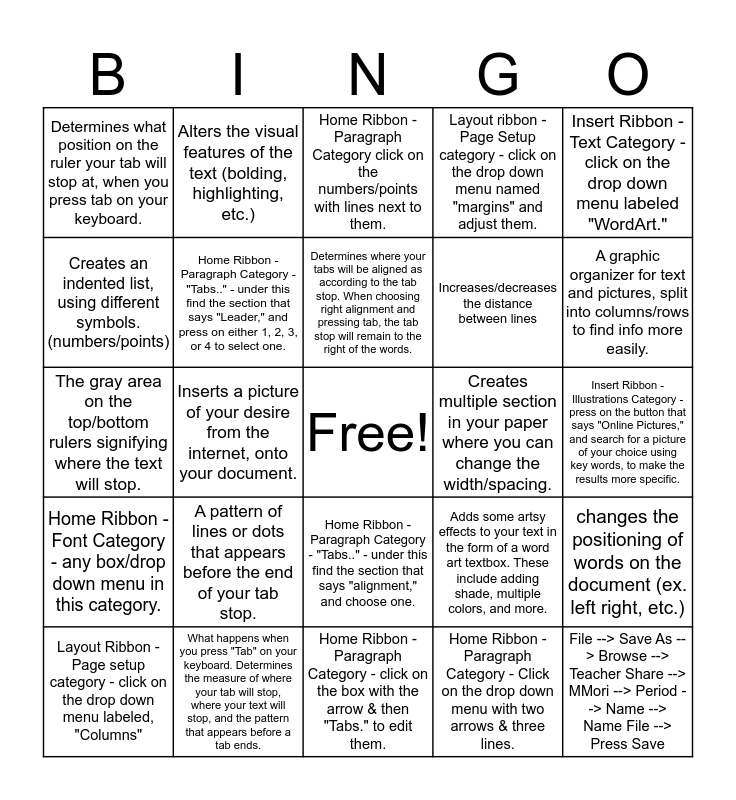
This bingo card has a free space and 28 words: changes the positioning of words on the document (ex. left right, etc.), Home Ribbon - Paragraph Category - 4 buttons showing a group of lines, Increases/decreases the distance between lines, Home Ribbon - Paragraph Category - Click on the drop down menu with two arrows & three lines., Creates an indented list, using different symbols. (numbers/points), Home Ribbon - Paragraph Category click on the numbers/points with lines next to them., Alters the visual features of the text (bolding, highlighting, etc.), Home Ribbon - Font Category - any box/drop down menu in this category., Creates multiple section in your paper where you can change the width/spacing., Layout Ribbon - Page setup category - click on the drop down menu labeled, "Columns", The gray area on the top/bottom rulers signifying where the text will stop., Layout ribbon - Page Setup category - click on the drop down menu named "margins" and adjust them., What happens when you press "Tab" on your keyboard. Determines the measure of where your tab will stop, where your text will stop, and the pattern that appears before a tab ends., Home Ribbon - Paragraph Category - click on the box with the arrow & then "Tabs." to edit them., A graphic organizer for text and pictures, split into columns/rows to find info more easily., Insert Ribbon - Table Category - design and layout categories under the table tools., A pattern of lines or dots that appears before the end of your tab stop., Home Ribbon - Paragraph Category - "Tabs.." - under this find the section that says "Leader," and press on either 1, 2, 3, or 4 to select one., Determines where your tabs will be aligned as according to the tab stop. When choosing right alignment and pressing tab, the tab stop will remain to the right of the words., Home Ribbon - Paragraph Category - "Tabs.." - under this find the section that says "alignment," and choose one., Determines what position on the ruler your tab will stop at, when you press tab on your keyboard., Home Ribbon - Paragraph Category - "Tabs.." - under this find the category labeled "Tab stop position," and enter a measurement into the box bellow., File --> Save As --> Browse --> Teacher Share --> MMori --> Period --> Name --> Name File --> Press Save, Inserts a picture of your desire from the internet, onto your document., Insert Ribbon - Illustrations Category - press on the button that says "Online Pictures," and search for a picture of your choice using key words, to make the results more specific., Adds some artsy effects to your text in the form of a word art textbox. These include adding shade, multiple colors, and more., Insert Ribbon - Text Category - click on the drop down menu labeled "WordArt." and Makes it so your text wraps around your picture, and so it doesn't mess up the text either..
Word Review - Amanda S. | word review - Charlotte Steinbeck | Word Review Anthony S | Word Review Gabe O. | Word Review - Anderson S.
Share this URL with your players:
For more control of your online game, create a clone of this card first.
Learn how to conduct a bingo game.
With players vying for a you'll have to call about __ items before someone wins. There's a __% chance that a lucky player would win after calling __ items.
Tip: If you want your game to last longer (on average), add more unique words/images to it.